When voice and images beat typing
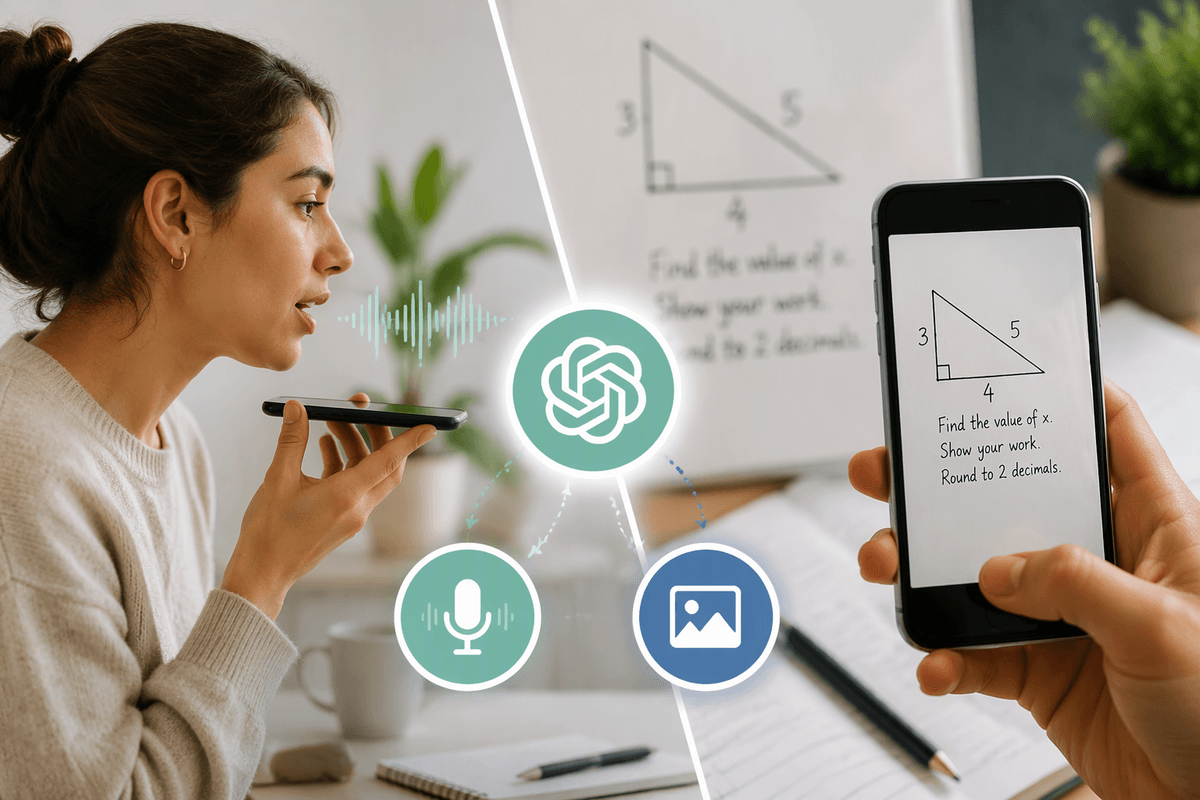
You already know the moments when typing feels like the wrong tool: you’re walking between meetings, cooking, commuting, or holding a crying baby, and you still want a solid answer. Voice input wins there because you can “dump” context quickly—what you tried, what’s broken, what you need—without thumbs slowing you down. Images beat typing when the problem is visual: a homework question, an error message, a form you don’t understand, a product label, a messy whiteboard.
Background noise, accents, and rushed speech can blur details, and photos can hide the one line that matters if they’re dark or cropped. Voice and images also raise privacy stakes: you may capture names, addresses, or account info without noticing. When the stakes are high, slow down for ten seconds and give cleaner input.
Check your setup: app, permissions, and privacy
The first time voice or images “don’t work,” it’s usually not your prompt—it’s your setup. Use the official ChatGPT app on your phone (or the desktop app, if you have it), because browser sessions can be inconsistent with mic and camera access. On your phone, confirm the app has permission for Microphone (for voice) and Camera and Photos (for taking or uploading images). If you’re on a work or school device, a managed policy can block these permissions; you may need to switch to a personal device or ask IT.
Do a quick privacy check before you start: look at what’s in frame and what your voice might reveal. Crop screenshots to the relevant area, hide names and account numbers, and avoid sending one-time codes, IDs, medical details, or anything you wouldn’t paste into a message to a stranger. Also note the practical cost: voice and image features can use more battery and data, and noisy environments may force you back to typing for accuracy.
Voice input: fast prompts without losing clarity
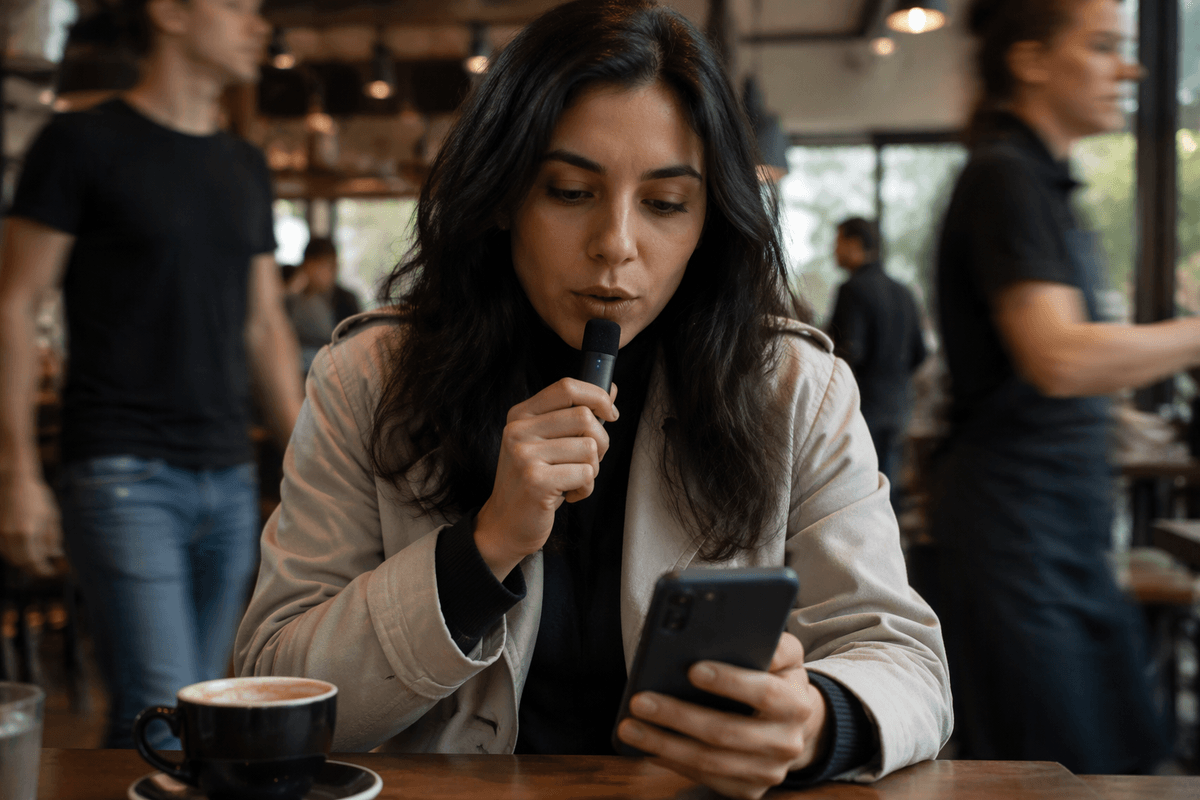
You’ll get the best results from voice input when you treat it like a structured “voice note,” not a casual ramble. Start with a one-sentence goal (“Help me write a polite follow-up email”) and immediately add the key constraints (“under 120 words, friendly, not pushy”). Then speak the facts in a tight order: who it’s for, what happened, what you already tried, and what you want as the output. If you need a specific format, say it out loud: “Give me three options, each with a subject line and two short paragraphs.”
Small habits prevent messy transcripts. Pause briefly between points, spell unusual names, and say numbers clearly (“one five” for 15 if it matters). If you’re in a noisy place, move the mic closer and lower your voice instead of talking louder; shouting tends to distort. The long voice dumps can drift, and you may need to stop and say, “Summarize what you heard in bullet points, then ask me what’s missing,” before you continue.
Voice conversations: turn-taking, tone, and follow-ups
Voice conversations work best when you treat them like a two-person call, not a single “perfect prompt.” Say one idea, then stop. Give the model space to confirm what it understood (“So you want X, with Y constraint—right?”) and correct it immediately if anything is off. If you notice it heading the wrong way, don’t restart from scratch; interrupt with a short redirect: “Pause—use a more formal tone,” or “Ignore the first example and focus on the second.”
Tone comes through more than you expect. If you sound rushed or frustrated, the phrasing can tilt sharper than you intended, so name the tone explicitly: calm, neutral, warm, direct, or “firm but not rude.” Follow-ups are where voice shines: ask for iterative changes (“Make it 20% shorter,” “Add one sentence acknowledging their delay,” “Give me two versions: friendly and assertive”). In a noisy room or with spotty connection, turn-taking breaks down, so fall back to a quick typed correction for names, numbers, and exact wording.
Image input: what to photograph for best results
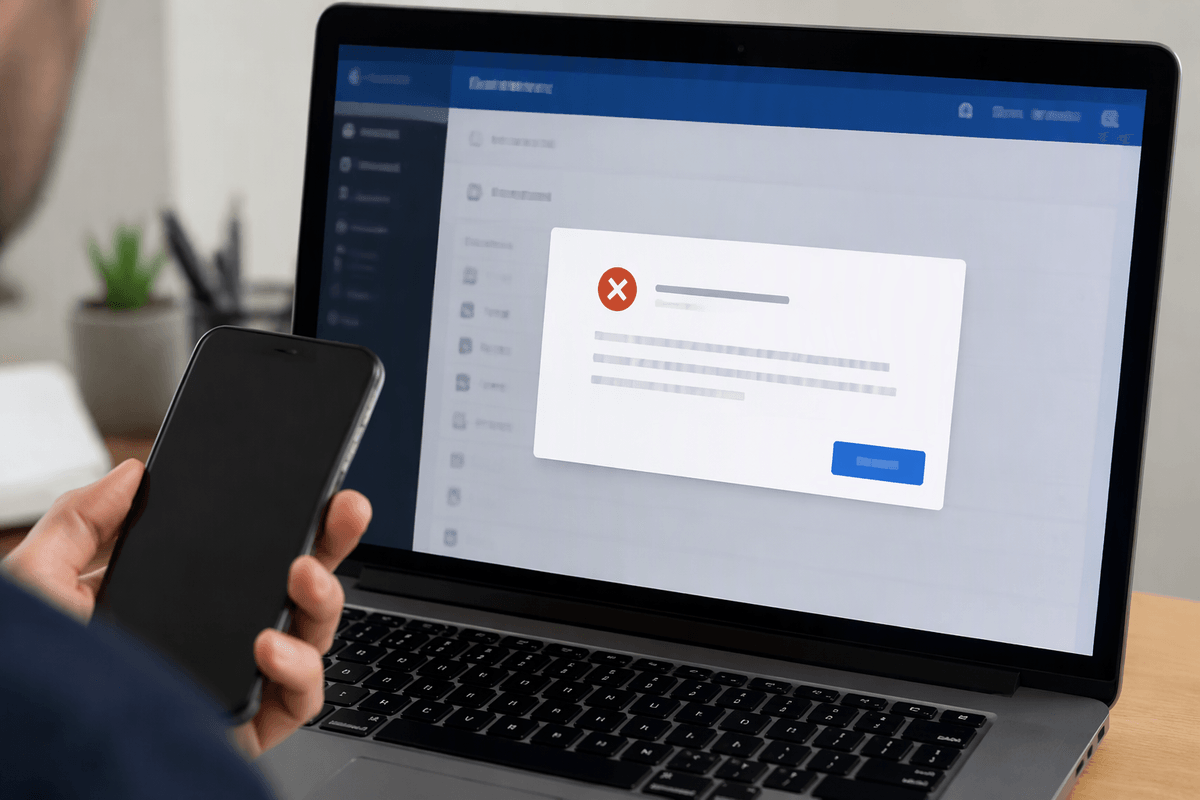
You’ll get better image answers when you photograph “the decision point,” not the whole scene. If you’re stuck on an error, fill the frame with the message and any line that identifies where it happened (app name, step number, or the field you were trying to submit). For homework or notes, capture the full question plus any diagram, and include the instructions that change the rules (“show your work,” “round to 2 decimals”). For forms and letters, shoot the section that asks you to act and the surrounding headings, then ask: “Translate this into plain English and tell me what I’m supposed to do.”
Make the picture easy to read. Use bright, even light, hold the phone steady, and avoid extreme angles that warp text. Take two shots when needed: one zoomed out for context and one close-up for detail. If it’s a screenshot, crop to the relevant area and blur names, addresses, account numbers, barcodes, and QR codes. The glossy screens and tiny font can produce unreadable glare or blur, and you may need to retake the photo or type one critical line verbatim.
Practical workflows combining voice and images
Voice and images become more useful when they work together. Start by photographing an error message, form, or homework problem, then explain the context aloud: “I’m on step three of signup,” “This is for AP Biology,” or “I’ve already tried resetting my password.” The image supplies the visual details, while your voice clarifies the goal and what has already been attempted. Asking for a specific result, such as a plain-English explanation followed by the next three actions, helps keep the response focused.
Another useful approach is to dictate a draft, then upload a photo of the supporting material, such as meeting notes, a whiteboard, or an agenda. Ask the model to revise the draft to match the source, stay under 150 words, and identify missing information. For documents with dense handwriting or small text, a full-page photo and a close-up may both be necessary. Privacy also matters: sensitive names, account numbers, or confidential details may be better entered by typing, particularly in public settings.
Common pitfalls and a simple habit to start
You’ll usually run into the same handful of failure modes: asking for help without stating the output you want, sending a blurry photo that hides the one line that matters, and assuming the model knows what happened off-camera or before the screenshot. The other common pitfall is accidental oversharing—names in the corner of a form, a visible address, or a screen that includes account details. There’s also a simple cost: retakes and re-prompts take time, and voice can be unreliable in loud spaces.
A habit that fixes most of this is a 10‑second “clean input” check: frame only what matters, remove sensitive bits, then say one sentence for goal and one sentence for constraints. If anything is ambiguous, ask it to repeat what it thinks you want in bullets before it answers, and correct that first.