When AI can write the formula faster
You’ve probably had the moment where the spreadsheet work is simple in your head but slow in your hands: “return the latest non-blank value,” “bucket these dates into fiscal weeks,” “sum revenue by customer, excluding refunds,” “flag duplicates but ignore blanks.” You can usually get there, but it costs time in function hunting, syntax fixes, and rework when an edge case appears. That’s where AI is often faster: translating a clear rule into correct, nested functions on the first pass.
The speed can hide mistakes. AI will confidently produce a formula that works for the happy path but breaks on blanks, text numbers, new rows, or mixed date formats. It’s also easy to accept a formula you don’t understand, then struggle later when the sheet changes. The goal isn’t to outsource thinking. It’s to offload the typing and function wiring, then keep control by giving tight inputs and doing quick checks.
Start by clarifying the spreadsheet’s real task
You can save a lot of back-and-forth with AI by turning your “formula request” into a small, testable statement of what the sheet is supposed to decide. A good starting point is to write the rule in one sentence, then list what counts and what doesn’t. “Sum revenue by customer” becomes: “For each customer ID in column A, sum amounts in column D where Status is Paid, exclude any rows marked Refund, and treat blanks as zero.” That’s not being picky; it’s the difference between a clean SUMIFS and an hour of patching.
Make your intent concrete by naming the inputs, the output shape, and the grain. Are you returning a single value, filling a whole column, or creating a spill range? Is the calculation per row, per customer, per month? Then add two or three examples with expected results (including a blank, a weird date, or a negative). This takes a few minutes, but it’s usually cheaper than debugging a clever formula you never actually asked for.
Give AI the context it actually needs
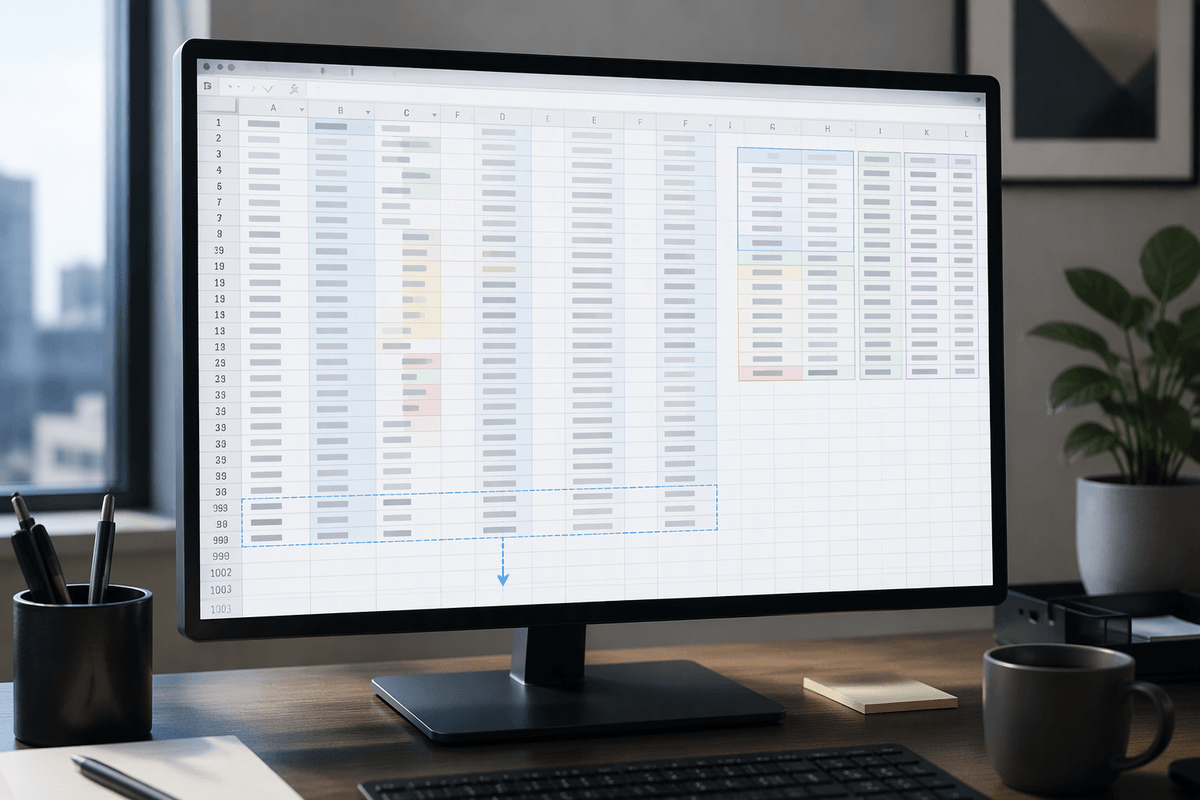
AI-generated formulas are more reliable when the prompt describes the actual spreadsheet rather than just the desired result. Specify whether the file is in Excel or Google Sheets, which argument separator the locale uses, and whether dynamic arrays are supported. Include 10–20 representative rows with the original headers and identify the relevant columns, such as A for CustomerID, D for Amount, and F for Type. For data that will keep growing, explain whether the formula should use whole-column references, an Excel Table structured reference, or a fixed range.
Data irregularities and business rules also need to be explicit. Mention blank cells that should be ignored, numbers stored as text, inconsistent date formats, leading or trailing spaces, and duplicate keys. Explain exceptions in plain language, such as refund rows always having negative amounts but still needing to be excluded from revenue calculations. Providing these details upfront takes a little more effort, but helps prevent formulas that break when new rows are added or data arrives from another system.
Prompt patterns that reliably produce good formulas
You’ll notice a big jump in quality when you stop asking for “a formula” and start asking for a specific deliverable. Try: “Write one Excel formula for cell G2, then tell me where to fill/copy it. Use commas. Use dynamic arrays if it simplifies. If you need helper columns, propose them as Option B.” That framing forces AI to commit to a placement, a style, and a scope instead of giving a generic snippet you still have to adapt.
Two prompt patterns that work well in real sheets: (1) “Use only these functions: X, Y, Z” when you’re maintaining a shared file and can’t introduce newer functions. (2) “Return a blank for blank inputs; otherwise return…” to prevent noisy zeros and errors spreading down a column. When logic gets tricky, ask for a “version with comments” by having AI break the formula into named steps (even if Excel won’t store them), then request the final condensed formula. The longer prompts and step-by-step drafts cost tokens and time, but they reduce rework.
Choosing between one formula and helpers
Choosing between one complex formula and several helper columns depends on how the spreadsheet will be used. For a stable rule in a dashboard or a single KPI, keeping the logic in one cell may be perfectly reasonable. When requirements are likely to change, data will keep growing, or colleagues need to maintain the workbook, helper columns or a small supporting table are usually easier to manage. A column that standardizes dates, trims IDs, or marks eligible rows with an “Include?” flag can replace a fragile nested formula with a simpler SUMIFS or FILTER.
Helper columns take up space, increase file size, and may slow recalculation across large datasets. Single-cell formulas keep the sheet visually compact, but debugging becomes harder as the logic grows. When a formula requires more than two levels of nesting, several error-handling branches, or repeated conversions such as VALUE, DATEVALUE, and TRIM across the same range, ask AI to propose an alternative using helper columns. Choose the version whose logic you can explain clearly to a coworker in 30 seconds.
Validate, debug, and harden AI outputs
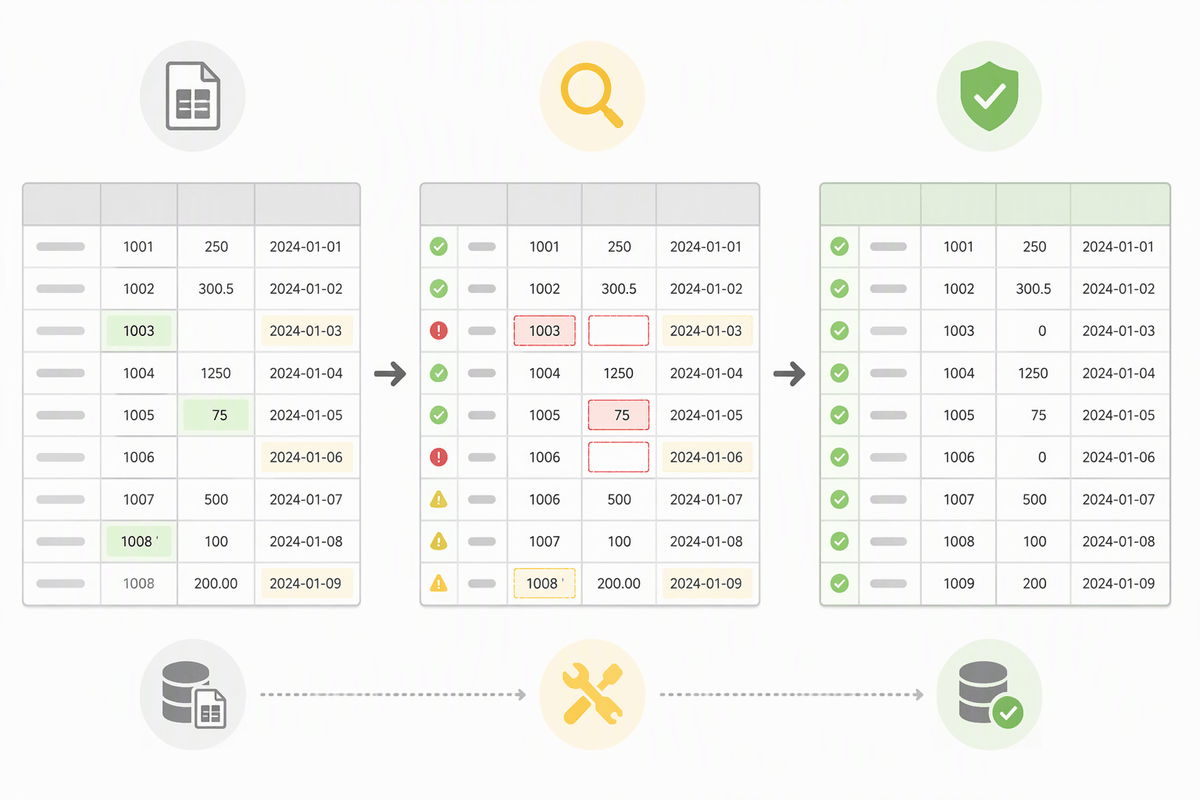
You’ll recognize the pattern: the AI formula “works” on the first few rows, then quietly drifts when you fill down or when a new export lands. Treat the first output as a draft. Paste it into a copy of the sheet, then test it against the examples you listed plus a couple of ugly rows: blank keys, text numbers, extra spaces, missing dates, and a category you didn’t mention. If it’s meant to spill, confirm the spill range doesn’t overwrite existing data and that the output shape stays the same when new rows appear.
When something is off, don’t ask for a whole new formula. Isolate the failure. In Excel, use Evaluate Formula and temporarily wrap pieces in LET so you can see intermediate values; in Sheets, use helper cells to surface each step. Then feed AI the exact symptom (“Row 214 returns #N/A because lookup value has trailing spaces”) and the smallest data snippet that reproduces it. Harden the final version with TRIM/CLEAN, explicit coercion (VALUE/--), and a deliberate error policy (IFERROR only where you can justify it). The cost is a few extra functions and recalculation time, but you buy predictability.
A repeatable workflow for daily spreadsheet work
The most common daily use case is a request that’s clear in English but fuzzy in cells: “turn this export into a clean weekly rollup” or “flag accounts that churned.” Keep a tiny template prompt in your notes: tool (Excel/Sheets), where the formula will live, the exact input columns, what to return for blanks/errors, and 2–3 expected outputs. Paste 10–20 representative rows, including one messy row, and tell AI whether the range will grow.
Then run the same checks every time: test against your examples, fill down or confirm the spill, and sanity-check totals against a pivot or quick SUMIFS. Only after it matches, move it into the real sheet and add a short cell note describing the rule. The constraint is discipline: five minutes of setup and testing feels slow, but it prevents the 45-minute “why is this number wrong” loop later.